Who's this for?
Slash commands
A slash command is a built-in command specific to your code-pilot tool. They are invoked with a forward slash / and the command name.
Quick reference
| Command | What it does |
|---|---|
/plan | Shows what the AI intends to do before it acts |
/rubber-duck | Critique a plan or change |
/security-review | Scans for security risks and vulnerabilities |
🗒️ /plan - save your time and tokens
/plan fix the bugBefore I have the AI change any code, I have it tell me its gameplan.
This is the highest-value habit on the list and my most-used.
Prompt Engineering has it’s place. However, it’s a fancy word for overcommunicating. Overcommunicating is good. But I’m a lot better at telling you what I don’t want when presented options, than every single detail of what I do want.
With /plan or plan mode, I catch any wrong assumptions early, and fix it while it’s still just words.
Spending time wrestling with the AI to get what you want is a waste of time and resources.
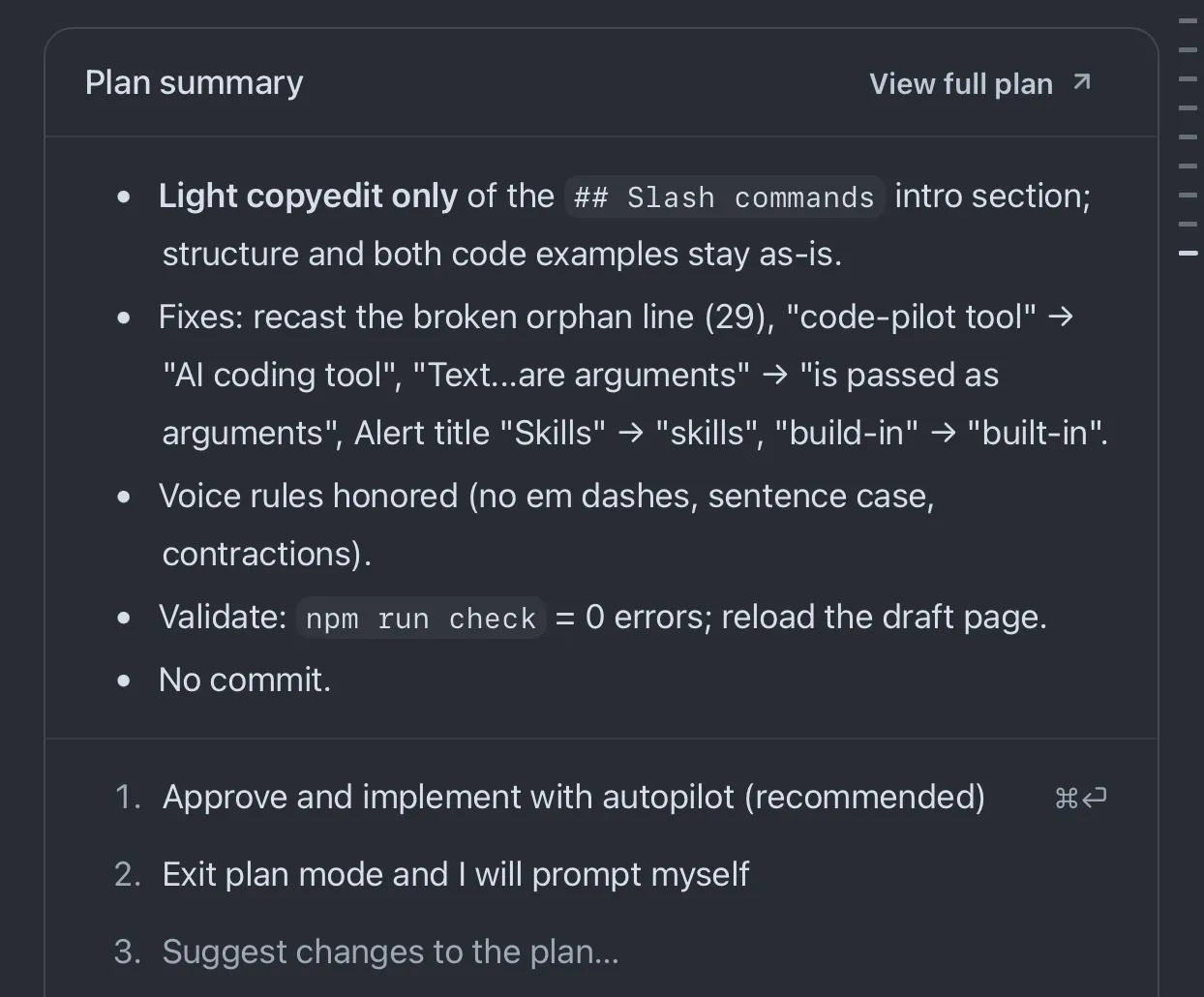
Getting it 100% right is a lot of pressure. It’s pressure on me as the Prompter AND for the Promptee (Prompted?).
With a well-structured prompt, it usually gets me 80-90% of your goal. With some semblance of my goal prefixed with /plan, I get 50-70% there. My job as the expert, career-having human, is to make sure it succeeds at what I set the AI out to do.
It can be a little manual at the start, as you begin to notice blind spots and where it makes assumptions about the repo or task. Over time (and some .md files), my process can be delegated to agents to handle.
And it saves the token and time cost of a long wrong turn. The cheapest edit is the one you make to the plan. It also doubles as a checkpoint I can steer from, so the AI and I agree on where we’re headed before a single line changes.
🐥 /rubber-duck
/rubber-duckNamed after rubber-duck debugging: you explain the problem out loud (to a rubber duck, traditionally) and the act of explaining and talking out loud help you problem-solve or notice gaps you missed.
/rubber-duck dispatches an independent sub-agent to point a fresh set of eyes at a plan or a change. It returns feedback: the bugs, the logic gaps, the design flaw.
I did not generate this code so I could review it line-by-line. /rubber-duck helps me with that.
This one survives because deciding when I need a gut-check is a judgment call the App can’t make for me. I run it after /plan on anything gnarly, and before I commit something I’m not sure about. Few months ago, I had 2 different models critique each other. This is more efficient.
🔐 /security-review
/security-review/security-review dispatches a sub-agent pointed at one thing: is this change safe? It reads the diff for exploitable holes (e.g. injection, leaked secrets, auth mistakes, etc.) and reports a priority-risk assessment.
This helps me sleep better at night, knowing I have a dedicated agent giving me some cybersecurity coverage.
📱 /remote
/remote on/remote on its own shows the current status.
/remote on connects the session you’re running to your GitHub account, so you can watch it, answer prompts from GitHub Mobile (or browser). They call this ‘steering’.
/remote off ends the connection.
It needs a GitHub repo in your working directory to work, and pairs nicely with /keep-alive so your machine doesn’t fall asleep while you’re vibin’ on the go.
Better than doom-scrolling social media for me. I usually get questions about things I might not have been 100% clear with during /plan.
I expect this command to be obsolete and replaced by a toggle button that combines remote and keep-alive.
Commands the GitHub Copilot App made obsolete
Now the longer list. This isn’t a graveyard. Instead, it’s a cozy area where they can rest easy after they served their purpose.
I used to lean on these hard. Now, they’re retired.
GitCop App took the chore they solved and moved it into the interface, so the keystroke stopped being worth it.
A command you no longer need is a problem that got solved.
/compact
/compactContext windows are finite. Once that window is filled up, users experience cliffs where it feels like the AI is forgetting key pieces of information. You need to consolidate the information or start over with a fresh context window. Not ideal when you’re on a roll, you lose momentum.
AI is now self-compacting, which is the whole reason I stopped typing this by hand.
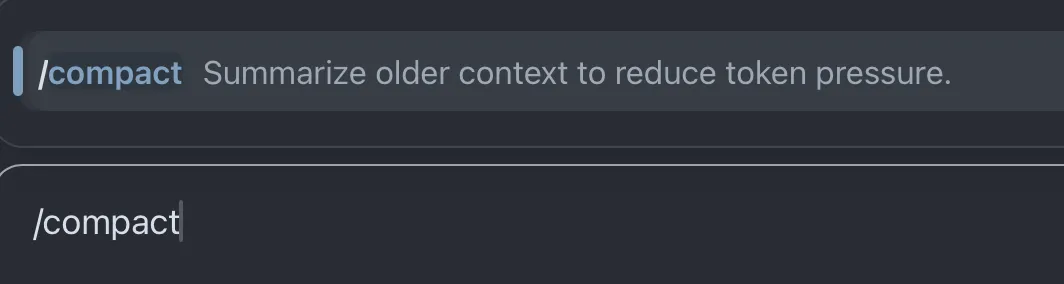

You can use /context to show you what’s currently taking up space.
/context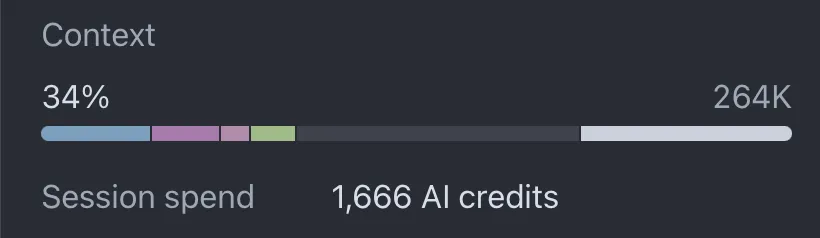
/clear
I don’t need this anymore with the GitCop App’s sessions. Previously used it for keeping track of sessions and practice good session hygiene.
/clear/clear wipes the conversation but keeps the project’s memory (the notes about your codebase), so you lose the clutter, not the useful stuff.
Leftover context from the last task doesn’t just waste space, it quietly muddies the next answer.
In the GitCop App, each task gets its own session in the sidebar, so starting a new session is cleaner than clearing an old one. That’s the move that retired /clear for me.
If you might want to come back to a session later, rename it first with /rename, then reopen it with /resume. Both work in Copilot CLI too.
Couldn’t be me, if I don’t remember it exists, it’s GONE. Exists in limbo like whatever is in my junk drawer 🤷♀️
/model
/modelNot every task needs the biggest brain. /model switches which AI model you’re using.
Please don’t use Opus 4.8 extra high effort to reply to Dawn from HR that you completed your security training.
Haiku does it fine.
(and cheaper on paid plans)
Auto mode is efficient for most tasks now, so I stopped juggling this by hand. I only switch on purpose when a task warrants a bigger or smaller brain.
/ask
I used /ask (experimental, Copilot CLI) to fire a side question during Autopilot runs without cluttering history.
In the GitCop App I just queue the message, and it answers when it’s ready, no separate command needed.
/diff
Same story. I used to type a request to see exactly what changed.
The GitCop App has a built-in view of exactly what changed, so I read the diff there instead of typing a command to see it.
The UX engineering read
None of these are bad commands. They’re just lower return-on-effort once a modern app absorbs the friction they were solving for.
The obsolescence list isn’t a pile of dead commands. It’s a map of where the tool got better.
Every command the App retired is a chore it decided to handle for you: managing context, clearing state, hunting a diff. The commands that survived are the ones that needed the human call.
That split, where chores move into the interface and final judgment stays with you, is what good digital experience looks like up close.
So the habit worth building isn’t memorizing commands. It’s watching the process that produces them.
Context windows have cliffs, so /compact showed up. Sessions got cluttered, so /clear did.
My call to action is for emerging and practicing UXEs to study this and be the voice for this experimentation, advocacy, and evolution.
Next steps
Don’t try to memorize the whole list. Pick up one habit at a time.
Use plan mode.
Start here. /plan. It saves long-term token usage and time by catching discrepancies early.